Automating Deployments Using Jenkins & AWS S3
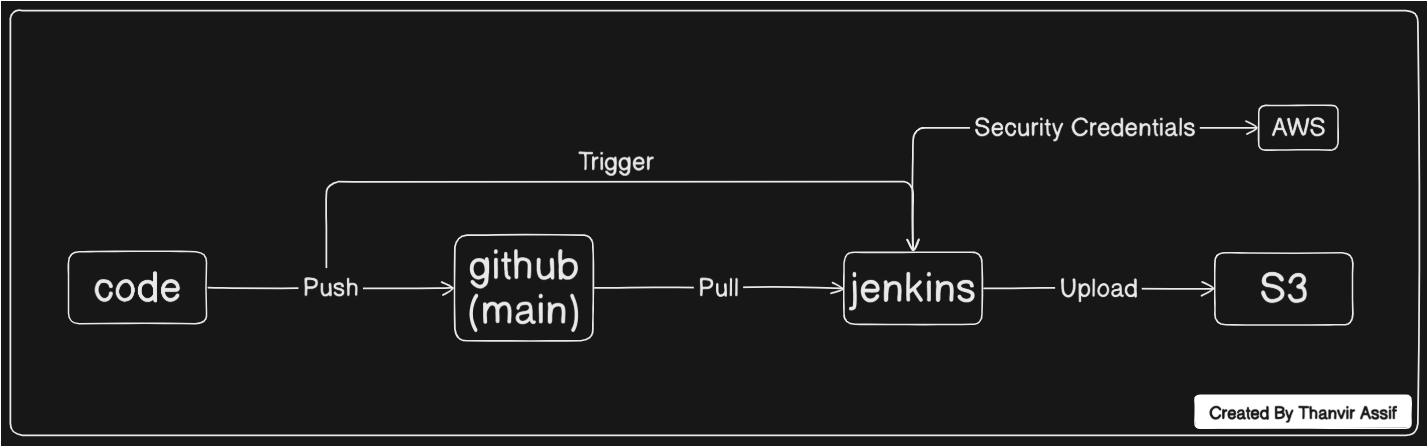
Imagine you are building a website. Normally, every time you make a change, you have to manually upload files. This is slow and prone to human error. In this lab, we build an Automated Pipeline. Jenkins will watch your GitHub repository and automatically deploy fresh code to AWS S3 the moment you save it!
Architecture Overview
0 Required Tools & Accounts
Ensure you have the following ready before starting the deployment lab.
Docker
Container Runtime
GitHub
Code Repository
AWS Account
Cloud Provider
Jenkins (LTS)
Automation Server
1 Setting up our Jenkins Robot
We are going to run Jenkins inside a Docker Container. Open your terminal and paste this command to start it up:
docker run -d --name jenkins-server -p 8080:8080 -p 50000:50000 -v jenkins_data:/var/jenkins_home jenkins/jenkins:ltsJenkins secures itself on the first boot. You need the initial admin password to proceed. Run this to view the logs:
docker logs jenkins-serverhttp://localhost:8080 in your browser, paste the
password from the logs, click Install suggested plugins, and create your admin
account.
2 Giving Jenkins the Right Tools
By default, Jenkins doesn't know how to talk to Amazon Web Services. We need to install the AWS Command Line tool directly inside our container.
# Step 1: Drop into the container's terminal as root user
docker exec -u root -it jenkins-server /bin/bash

# Step 2: Install the AWS CLI package
apt-get update && apt-get install -y awscli

# Step 3: Exit back to your host machine
exit
3 Setting Up AWS (The Destination)
We need a place to put our website, and we need to give Jenkins a secure "ID Badge" to enter our AWS account.
- Create a Bucket: Log into the AWS Console, search for S3, and
create a unique bucket (e.g.,
my-cool-website-bucket-123). - Create an IAM User: Search for IAM and go to Users. Create a user
named
jenkins-deployer. - Attach Policies: Grant this user the AmazonS3FullAccess permissions policy.
- Generate Keys: Go to the user's Security Credentials tab and create an Access Key for Command Line Interface use.
CRITICAL: Save Your Keys
Copy the Access Key ID and Secret Access Key shown on the AWS screen right now. You will not be able to view the secret key again once you close the window!
4 Linking AWS to Jenkins
Now we hand that ID badge over to Jenkins securely so it isn't hardcoded in our scripts.
- Open your Jenkins dashboard at
http://localhost:8080. - Navigate to Manage Jenkins -> Credentials.
- Click on (global), then click + Add Credentials.
- Set Kind to Username with password.
- Username: Paste your AWS Access Key ID.
- Password: Paste your AWS Secret Access Key.
- ID: Type exactly
aws-credentials(We will reference this ID in code). - Click Create.
5 Writing the Automation Instructions
Create a new Pipeline job in Jenkins, configure it
to Poll SCM every minute (* * * * *), and paste this Groovy script into the
Pipeline box. Make sure to replace your GitHub URL and Bucket Name!
pipeline {
    agent any

    environment {
        // Set this to the region where you created your S3 bucket
        AWS_DEFAULT_REGION = 'ap-south-1'
    }

    stages {
        stage('Grab Code from GitHub') {
            steps {
                // Jenkins downloads the latest code from your main branch
                git branch: 'main', url: 'https://github.com/YourUsername/YourRepoName.git'
            }
        }

        stage('Upload to AWS S3') {
            steps {
                // Jenkins uses the secure credentials we saved earlier
                withCredentials([usernamePassword(credentialsId: 'aws-credentials', passwordVariable: 'AWS_SECRET_ACCESS_KEY', usernameVariable: 'AWS_ACCESS_KEY_ID')]) {
                    sh '''
                        echo "Starting website upload..."

                        # Syncs our code files to the AWS bucket, skipping the hidden .git folder
                        aws s3 sync . s3://your-actual-bucket-name --exclude ".git/*" --delete

                        echo "Upload complete! Your website is updated."
                    '''
                }
            }
        }
    }
}
6 The Final Test (Go Live)
- Open a code file in your GitHub repository on your computer.
- Make a small change (like adding a new heading) and push the commit to the
mainbranch. - Switch back to your Jenkins dashboard and watch the magic happen.
- Within 60 seconds, Jenkins detects the code change and triggers the build.
- Check your AWS S3 bucket. Your new files are officially live!
🎉 Pipeline Complete!
You have successfully bridged the gap between Source Code Management and Cloud Infrastructure.